
How to Turn On Two Factor Authentication for Your Google Account
Google account security becomes more important when Gmail Drive Docs and payment information are connected, while two factor authentication adds another verification step against unauthorized access.
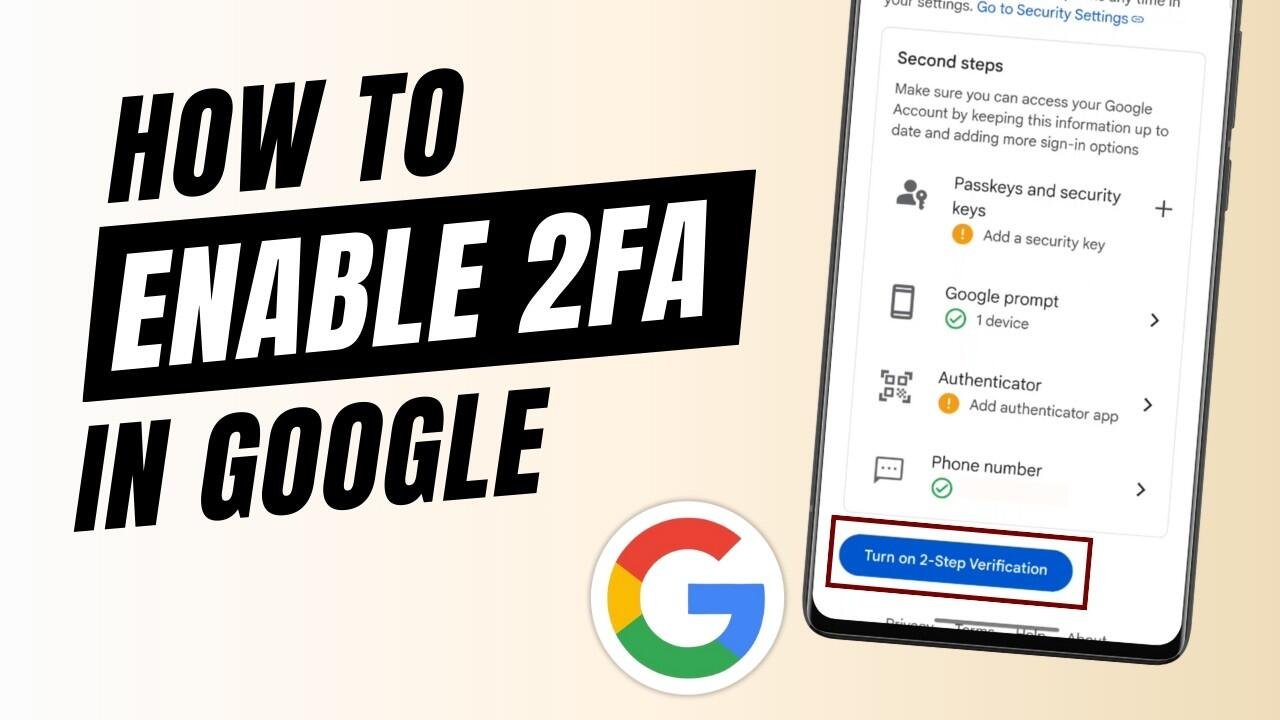
A Google account is often much more than an email address. For many users, the same account provides access to Gmail, Google Drive, Google Docs, Google Photos and several other services. Payment information linked with Google Play can also be accessed through the account.
That makes account security an important part of everyday digital use. A stolen or leaked password can create problems, particularly when the same account contains personal information or is signed in across multiple devices. One way to add another layer of protection is to enable two factor authentication.
The feature is also known as two step verification. It requires users to complete an additional verification step after entering their password. Depending on the security method selected, Google can ask for a prompt on a trusted device, an authenticator code, a passkey, a security key, a phone number or a backup code.
The additional step is useful because knowing the password alone may not be enough to complete the sign in process. This can make it harder for someone who has obtained the password to access the account.
For example, if a password is exposed through a data leak or another security incident, the second verification requirement can provide an additional barrier. It does not make an account completely immune to attacks, but it can reduce the risk associated with a compromised password.
Users who keep important documents, personal messages or other sensitive information in their Google account should pay particular attention to account protection. A single account can provide access to several connected services, which means that protecting the main login can be important for the wider digital account ecosystem.
Turning on two factor authentication is relatively straightforward and can be done from a computer or smartphone browser. The exact appearance of the settings may vary slightly depending on the device and the latest Google account interface.
To begin, open Chrome or another web browser and sign in to the Google account that needs additional protection. Tap or click the profile picture shown on the screen and select the option to manage the Google account.
Next, open the Security section from the account settings. Look for the area related to how you sign in to Google. The two step verification option can be found in this section.
After selecting two step verification, Google may ask the user to enter the account password again. This additional confirmation helps ensure that the person changing the security settings is the account holder.
Once the verification is completed, Google displays the available options for setting up the second step. Users can choose the method that suits their needs and the devices they regularly use.
Google prompts are one option. With this method, a sign in request can appear on a trusted device, allowing the user to confirm whether they are trying to access the account.
Authenticator applications provide another method. These apps generate temporary verification codes that can be entered when Google requests additional confirmation during sign in.
Passkeys and security keys can also be used as stronger authentication options. A passkey can allow users to confirm their identity using a supported device or screen lock, while a physical security key provides another form of account verification.
Phone based verification and backup codes are additional options available for account recovery and sign in. Backup codes can be particularly useful if the primary verification method is temporarily unavailable.
Users should take care when storing backup codes. They should not be shared with other people or kept in a place where someone else can easily access them.
It is also worth reviewing the devices and security methods connected to a Google account from time to time. If an old phone or device is no longer being used, checking the account security settings can help users understand where their account remains signed in.
Two factor authentication should not be treated as a replacement for a strong password. Users should still avoid predictable passwords and should not reuse the same password across important online services. Suspicious links, unexpected login requests and messages asking for verification codes should also be handled carefully.
Another important point is that users should never share authentication codes with someone who contacts them unexpectedly. A genuine verification code is intended for the account holder and should not normally be provided to another person.
For people who use Google services every day, enabling two factor authentication can be a simple security step that adds protection beyond the password. The feature takes only a few minutes to configure, while the extra verification can make unauthorized access more difficult.
As online accounts become increasingly connected to personal files, communication and payments, basic security settings deserve regular attention. Enabling two factor authentication and keeping recovery information updated can help users maintain better control over their Google accounts.